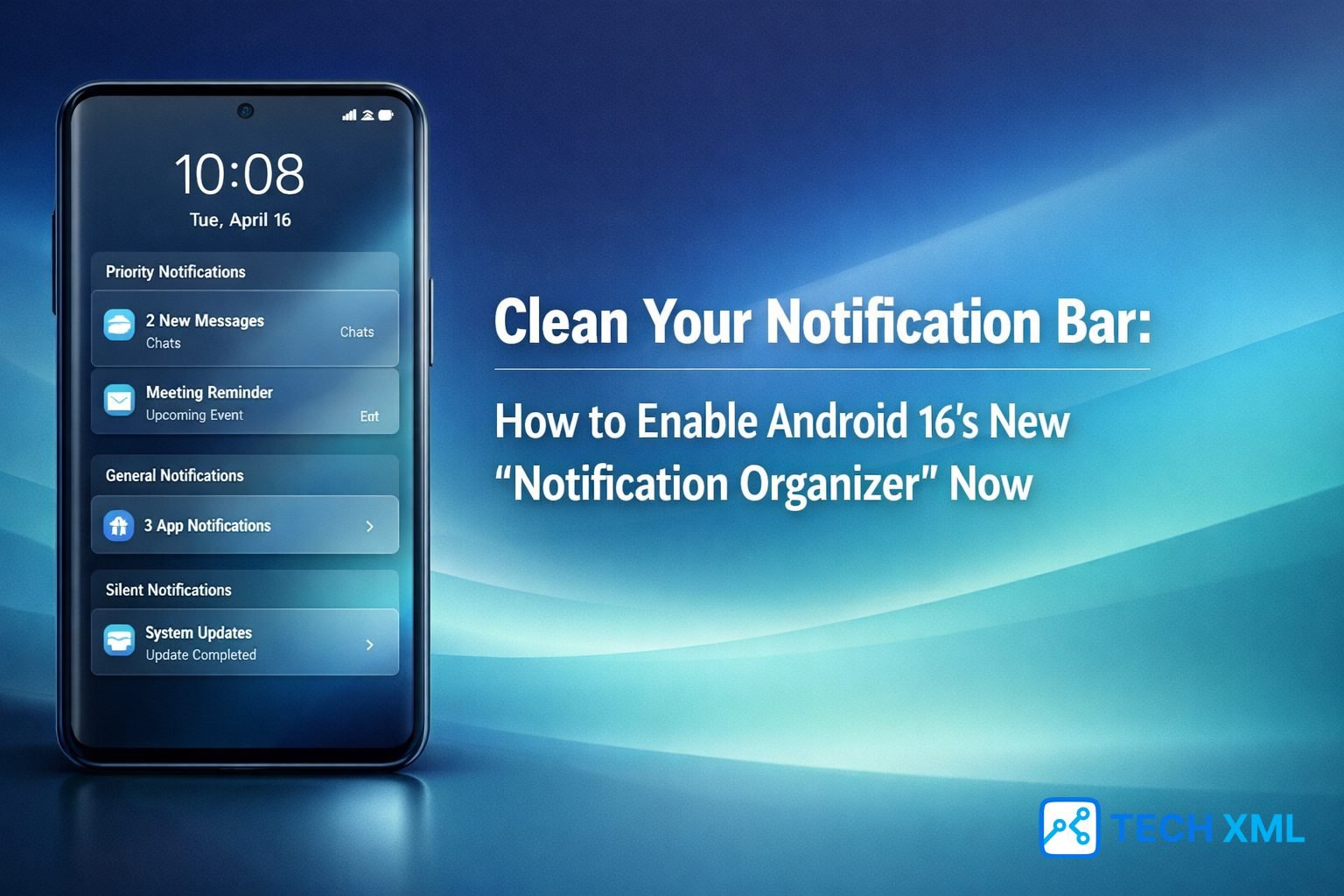
Your phone vibrates, lights up, and fills the screen before you even unlock it. Android 16 Notification Organizer enters this moment of overload with a promise of clarity. Most users feel confused, not careless, when notifications pile up without warning.
Daily alerts come from shopping apps, delivery updates, group chats, system reminders, and social platforms. Over time, this constant flow creates mental noise and decision fatigue. You start swiping blindly instead of reading intentionally. Android 16 Notification Organizer targets this exact frustration. Instead of forcing manual cleanup, it introduces order quietly. The goal feels simple, yet powerful, to help you see what matters without stress.
In this Guide:
What Is the Android 16 Notification Organizer?
Android 16 Notification Organizer is a system-level feature designed to intelligently group notifications. It analyzes notification type, timing, and app behavior to reduce clutter automatically. You no longer need to micromanage every app. Unlike older notification channels, this feature works dynamically. It adapts to how often alerts arrive and how you interact with them. Over time, the system becomes more accurate and less intrusive.
Importantly, it does not silence notifications. It reorganizes them visually and logically. That difference matters because users fear missing critical alerts. The Android 16 Notification Organizer works in the background. You stay in control while Android handles the structure. The experience feels calmer without feeling restrictive.
How Notification Organizer Works Behind the Scenes
The system evaluates notification patterns instead of reading content. It checks frequency, app category, urgency signals, and interaction history. Based on this, it decides grouping behavior. Notifications from similar sources or purposes get stacked together. For example, multiple delivery updates appear as one expandable group. This reduces vertical clutter instantly.
The organizer also adapts gradually. If you frequently open certain alerts, Android learns their importance. Those alerts gain higher visibility without user intervention. Privacy remains intact because no personal content analysis happens. The logic stays focused on behavior, not message details.
Types of Notifications It Automatically Groups
Promotional alerts, delivery updates, social media likes, and system reminders often fall into grouped stacks. These categories usually create noise rather than urgency. Messaging apps behave differently. Individual conversations often remain visible. However, muted or inactive threads may group automatically. System alerts, security warnings, and alarms always stay separate. Android protects critical information from being hidden. This balance helps users feel safe while enjoying a cleaner notification bar.
Why Google Introduced Notification Organizer in Android 16
Notification overload has grown quietly over the years. Apps compete for attention by increasing alert frequency. Manual controls stopped scaling with this behavior. Android 16 introduces Notification Organizer as a response to modern usage habits. Phones now handle work, payments, health, and communication together. Clutter affects productivity and emotional focus.
Google aims to reduce cognitive load without limiting functionality. Instead of asking users to configure endlessly, Android handles structure automatically. This shift reflects a design philosophy focused on calm technology. The phone supports you without demanding constant decisions.
The Problem of Notification Clutter on Modern Smartphones
Modern apps rely on engagement metrics. Notifications drive returns, clicks, and interactions. As a result, alert volume increases steadily. Users initially tolerate this behavior. Over time, the notification shade becomes unreadable. Important alerts get buried under low-value ones. Manual cleanup feels exhausting. Turning off notifications entirely feels risky. Users stay stuck between chaos and silence. Android 16 Notification Organizer breaks this cycle gently.
How Smart Grouping Improves Focus Without Blocking Alerts
Grouping changes how information appears, not whether it arrives. This distinction protects urgency and trust. Important alerts remain visible at the top. Less critical notifications collapse neatly. You scan faster and decide calmly. Because alerts still arrive instantly, users do not fear delays. The experience feels organized rather than controlled. Focus improves naturally. You spend less time clearing clutter and more time engaging intentionally.
How to Enable Android 16 Notification Organizer Step by Step
Enabling Android 16 Notification Organizer feels straightforward. The system avoids complex toggles or hidden menus. You can activate it in seconds and disable it just as easily. This reversibility builds confidence. Once enabled, the feature works immediately. However, accuracy improves over a few days of usage. Android encourages experimentation without commitment. That design choice matters for hesitant users.
Finding Notification Organizer in Android 16 Settings
Open Settings and navigate to Notifications. Look for the Notification Organizer option within advanced controls. The label remains clear and descriptive. Android avoids technical jargon here. Once toggled on, a short explanation appears. This confirms what changes and what remains untouched. The process feels safe and transparent.
Customizing Grouping Preferences for Daily Use
You can exclude specific apps from grouping. This works well for banking, work tools, or priority communication apps. Grouping sensitivity can also be adjusted. Some users prefer tighter stacks, others prefer looser grouping. These options remain optional. Default settings already work well for most users. Customization exists to empower, not overwhelm.
Read more on Tech XML:
- No More Dead Zones? ISRO’s New “BlueBird-6” Satellite Brings Internet to Every Phone
- Wait! Don’t Buy the S25: Samsung Galaxy S26 Launch Delayed to February [New Leaks]
- Make Movies Instantly: Google Veo 3.1 is Here! 5 Features That Blow Sora Away
- Android 16 First Look: 5 Features That Will Make Your Old Phone Feel New
- Robots Are Coming: How Amazon’s New “Agentic AI” Fleet Will Change Your Delivery
What Changes After You Turn On Notification Organizer
The first change you notice involves space. Your notification bar looks shorter and calmer. Scrolling becomes easier. Important alerts appear faster. Less mental effort feels required. Over time, grouping improves as Android learns your habits. The experience evolves subtly. You stop thinking about notifications as a problem.
How Your Notification Bar Looks After Organization
Grouped notifications appear as expandable cards. Each group shows a summary instead of multiple lines. You tap once to expand if needed. Otherwise, you move on quickly. The visual hierarchy feels cleaner. Your eyes find priority alerts naturally. This design reduces friction without hiding information.
Situations Where Manual Control Still Matters
Some apps require manual notification tuning. Work tools, finance apps, or emergency services need personal attention. Notification Organizer complements, not replaces, these controls. You still decide what deserves interruption. Users benefit most when they combine smart grouping with selective manual choices. Balance remains the key.
Success Story: From Constant Alerts to a Calm Notification Bar
Rohit from Bengaluru used his phone for work, payments, and social media. His notification bar stayed full from morning to night. After enabling Android 16 Notification Organizer, his phone felt different within a day. Alerts grouped automatically, and scanning became effortless. He stopped missing important work messages. He also stopped reacting to every buzz. The calm surprised him. He described the change as mental relief rather than visual improvement.
User Reviews: Real Experiences with Android 16 Notification Organizer
Ananya, Pune
“My phone finally feels organized without silencing important alerts. I appreciate how delivery updates group automatically.”
Vikram, Delhi
“I noticed improved focus during work hours. My notification bar no longer distracts me every few minutes.”
Neha, Jaipur
“Reduced anxiety is real. I feel less pressure to clear notifications constantly.”
Forum Discussions: Common Questions from Android Users
Amit from Noida:
Does Notification Organizer affect battery life?
Reply:
Users report no noticeable battery impact. The feature operates at system level efficiently.
Sneha from Kochi:
Can I turn it off anytime?
Reply:
Yes, disabling restores the previous notification layout instantly.
FAQs About Android 16 Notification Organizer
Does Android 16 Notification Organizer delay notifications?
No, notifications arrive instantly. The feature only changes how alerts appear visually in the notification bar.
Will important alerts get hidden inside groups?
Critical alerts remain separate. Android protects urgency by design.
Can I exclude specific apps from grouping?
Yes, users can whitelist apps that should always appear individually.
Does it work with all apps?
Most apps support grouping. Some system or priority apps remain separate automatically.
Is Notification Organizer suitable for non-technical users?
Yes, it works automatically and requires minimal setup for everyday use.
Final Thoughts: Is Notification Organizer Worth Enabling in Android 16?
Android 16 Notification Organizer offers calm without control loss. It respects urgency while reducing clutter. Users who value focus, clarity, and smoother phone interaction benefit most. The feature feels supportive rather than intrusive. Because it remains optional and reversible, risk stays low. Trying it costs nothing but offers noticeable relief. If notifications stress you daily, this feature deserves your attention.






Leave a Reply